KPI Treatment

The KPI treatment provides objective evidence of progress towards achieving the desired result. It measures what is intended to be measured to help inform better decision-making. Offer a comparison that gauges the degree of performance change over time.


1. On the Settings Dashboard page, click the “Reports” button.

2. Click the “KPIs” button and the list of available KPIs will be displayed. Click the “Treatments” button to show the reports.


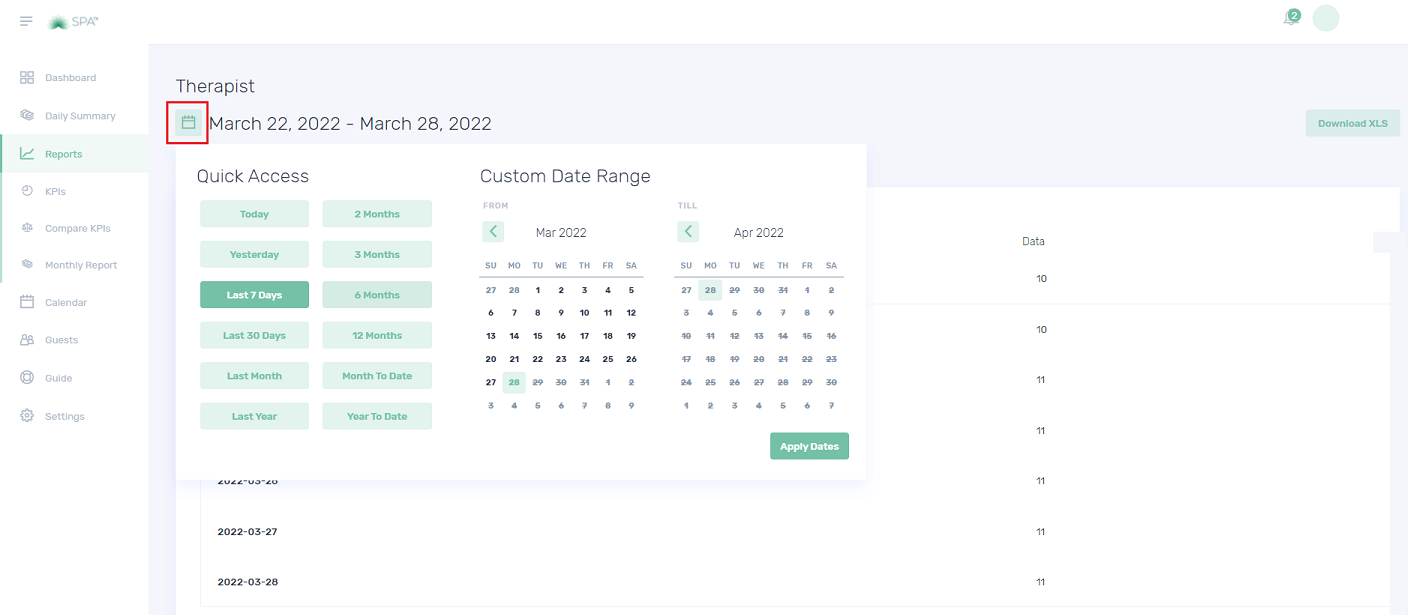
3. Click the calendar button to choose the preferred date you wish to view, and then click the “Apply Dates” button.


4. The Booked Treatments in Category displays the total number of booked treatments per category. Category can be filtered by clicking the “Filter” function. You can hover over the graph line to see the revenue amount.


5. The next table graph is the Booked Treatment Quantity. This counts the total number of booked treatments. You can select the treatment by using the “Filter” button.


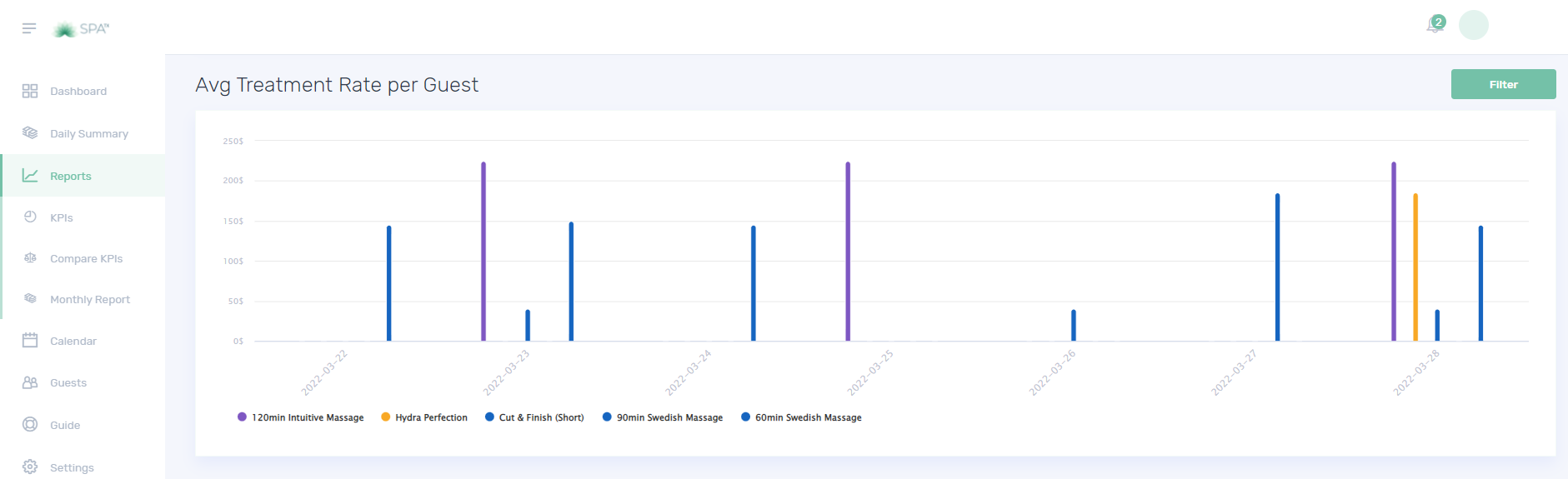
6. The Avg Treatment Rate per Paid Treatment in Category.


7. The Average Treatment Rate per Paid Treatment calculates the ratio of paid treatments.


8. Other reports that can be filtered by category or by specific treatment.


Quiz – Choose the correct answer.


1. What information do the Booked Treatments in Category provide?
a. Treatment category
b. Number of complimentary treatments per category
c. Number of treatments per category

2. What information does the Booked Treatment Quantity provide?
a. The Total number of booked treatments
b. The total number of booked treatments per category
c. None of the above

3. Choose the table graph that can be found in KPI Treatment
a. Average treatment rate per paid treatment
b. Average treatment rate per room in the category
c. Both a and b


If you need further assistance, please send an email to helpdesk@spa-tx.com

KPI Complimentary

The KPI Complimentary provides a summary of treatments that have been provided to the guest without paying anything. This is normally offered for VIP guests (for marketing purposes), recovery service from the unsatisfied guest at any special arrangement that has been approved by the spa manager.


1. On the Settings Dashboard page, click the “Reports” button.


2. Click the “KPIs” button and the list of available KPIs will be displayed. Click the “Complimentary” button to show the reports.


3. Click the calendar button to choose the preferred date you wish to view, and then click the “Apply Dates” button.


4. The Complimentary Quantity displays the number of turns away guests for the day.


5. The next table graph is the Complimentary Revenue. Here you can see how much is your complimentary revenue per category by using the “Filter” button.


6. The total Complimentary Hours can also be filtered by category.
Quiz – Choose the correct answer.


1. What best describes the Complimentary treatment?
a. Treatment for VIP guest
b. Treatment for very demanding guest
c. Treatment for the guest without paying any amount, for any reason.

2. How can we know the total hours of complimentary massage treatment?
a. Go to the “Complimentary Hours” report and filter by Massage
b. Go to the “Complimentary hours”
c. Go to the “Treatment report” and filter by Massage

3. Possible reason why we offer complimentary service?
a. Service recovery
b. Trial treatment for marketing purpose
c. Both a and b


If you need further assistance, please send an email to helpdesk@spa-tx.com


KPI Capture Ratio

The KPI Capture Ratio captures the ratio by hotel guests and by occupied hotel rooms. This information is useful as it is important to know your main guest type or so-called market. Defining your actual market will help you to form your service packages.


1. On the Settings Dashboard page, click the “Reports” button.


2. Click the “KPIs” button and the list of available KPIs will be displayed. Click the “Capture” button to show the reports.


3. Click the calendar button to choose the preferred date you wish to view, and then click the “Apply Dates” button.


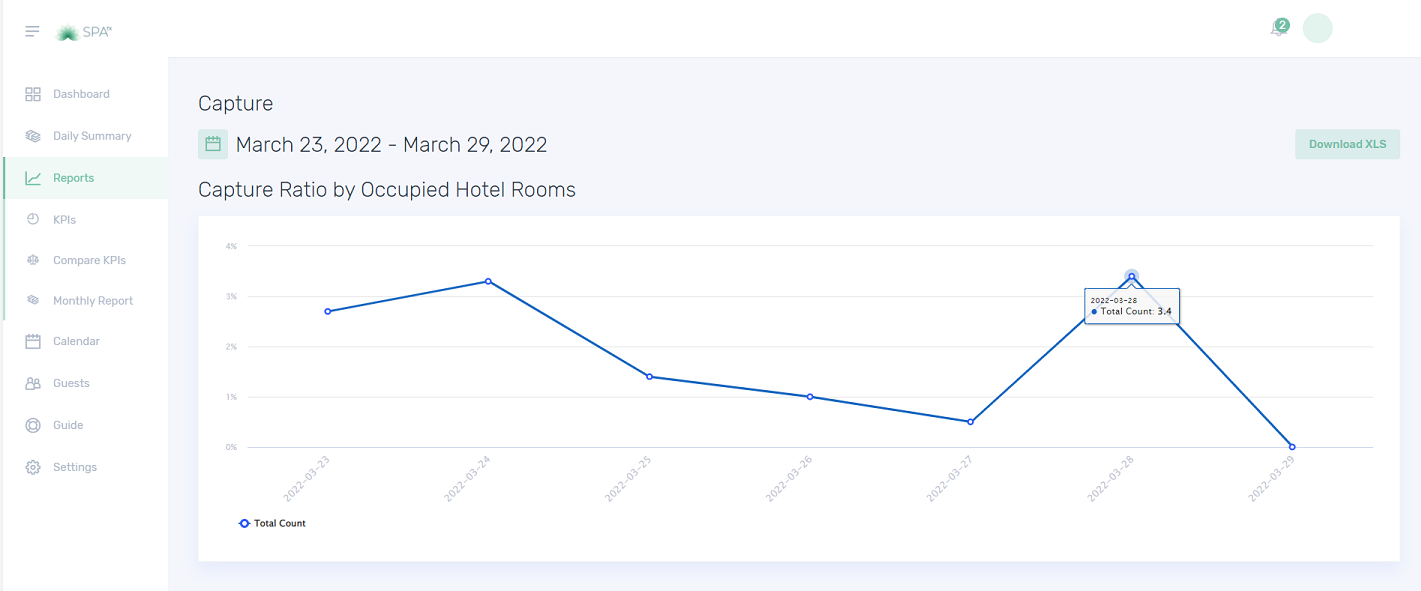
4. The Capture Ratio by Occupied Hotel Rooms table graph will display the information in percentage.


5. The Capture Ratio by Hotel Guests table graph will display the information in percentage.


Quiz – Choose the correct answer.

1. This graph captures the ratio of your guest by the number of guests in the hotel.
a. Capture ratio by occupied hotel rooms
b. Capture ratio by hotel guests
c. Both a and b

2. This graph captures the ratio of your guest by the number of hotel guests.
a. Capture ratio by occupied hotel rooms
b. Capture ratio by hotel guests
c. Both a and b

3. Which KPI captures the hotel guests and occupied hotel rooms?
a. Capture
b. Ratio
c. Both a and b


If you need further assistance, please send an email to helpdesk@spa-tx.com


KPI Turnaway

The KPI Turnaway gives you an insight into how many turn-away guests you have and how much revenue you are supposed to earn. These reports are important for us to know how we can arrange the therapist’s schedule and how to allocate rooms accordingly.


1. On the Settings Dashboard page, click the “Reports” button.

2. Click the “KPIs” button and the list of available KPIs will be displayed. Click the “Turnaway” button to show the reports.


3. Click the calendar button to choose the preferred date you wish to view, and then click the “Apply Dates” button.


4. The Turnaway Quantity displays the number of turned away guests for the day.


5. The next table graph is the Turnaway Revenue. Here you can see how much is your Turnaway revenue per category by filtering the category.


6. The Turnaway Revenue vs. Total Revenue displays the comparison between the 2 revenues. You can select the category by using the “Filter” function.


Quiz – Choose the correct answer.


1. What is the turnaway quantity?
a. This is the number of guests on the waitlist.
b. Total hours of turndown service.
c. Booked treatment quantity

2. Can we filter the treatment category in the Turnaway revenue vs Total Revenue?
a. Yes
b. No
c. Maybe

3. What are the 2 reports under KPI Turnaway?
a. Turnaway revenue and Turnaway Quantity
b. Turnaway revenue vs Total quantity
c. Total quantity and Total revenue


If you need further assistance, please send an email to helpdesk@spa-tx.com

KPI Therapist

The KPI Therapist gives you an insight into the average amount of revenue being generated per available Therapist. Revenue per therapist helps you determine if your therapists are effectively managing their time.


1. On the Settings Dashboard page, click the “Reports” button.


2. Click the “KPIs” button and the list of available KPIs will be displayed. Click the “Rooms” button to show the reports.


3. Click the calendar button to choose the preferred date you wish to view, and then click the “Apply Dates” button.


4. The Therapist Quantity displays the number of therapists on duty per day.


5. The next table graph is the Booked Treatment Quantity. Here you can see how many paid and complimentary treatments do the selected staff has.


6. The Generated Revenue per Therapist shows the total treatment revenue performed by the therapist.


7. The Therapist Utilization table graph is the therapist’s actual time usage in percentage. This can also view in a table by clicking the “Show Table” button.


8. The Table format of Therapist Utilization.


Quiz – Choose the correct answer.


1. Which table graph shows the number of paid and complimentary treatments done by a
therapist?
a. Generated revenue per therapist.
b. Therapist utilization.
c. Booked treatment quantity

2. What do you mean by Therapist Utilization?
a. The therapist’s actual time usage
b. The therapist’s total number of treatments
c. Both a and b

3. Which KPI provides Therapist Quantity?
a. KPI Therapist
b. KPI Therapist Availability
c. KPI Treatment


If you need further assistance, please send an email to helpdesk@spa-tx.com

KPI Rooms

The KPI Rooms gives you an insight into the average amount of revenue being generated per available room. It can be used to assess how efficient a spa is at making use of the space available.


1. On the Settings Dashboard page, click the “Reports” button.


2. Click the “KPIs” button and the list of available KPIs will be displayed. Click the “Rooms” button to show the reports.


3. Click the calendar button to choose the preferred date you wish to view, and then click the “Apply Dates” button.


4. The Revenue Per Room table graph can be filtered by room. You can hover on the graph line to see the revenue amount of that specific room. Filtered rooms are shown on the bottom as legends.


5. The next table graph is the Spa Hours. Here you can see how many hours does the Spa was utilized and what is the Unutilized hours.


6. The KPI room also provides the Utilized Hours by Category. You can just filter the treatment, and it will calculate the utilized hours as shown below.


7. In the Room Utilization by Treatments, calculates the actual room time used per treatment.


8. The Blocked Hours calculates the actual room time used according to the available filter.

Quiz – Choose the correct answer.
 

1. Why KPI room is important?
a. It can be used to assess how efficient a spa is at making use of the space available.
b. It gives us an insight into the average amount of revenue being generated per available room.
c. Both a and b

2. What is the utilize hour?
a. The room’s actual time usage
b. The room’s total number of treatments
c. Both a and b

3. What are the possible reasons for blocking the room?
a. Training and Maintenance
b. Reservation and Break time
c. Break time and Turnaround


If you need further assistance, please send an email to helpdesk@spa-tx.com

KPI Revenue

The KPI Revenue provides the figures for the Spa revenue, per Category revenue, and Treatment revenue. It helps to quickly analyze the current status versus your monthly budget.


1. On the Settings Dashboard page, click the “Reports” button.


2. Click the “KPIs” button and the list of available KPIs will be displayed. Click the “Revenue” button.


3. Click the calendar button to choose the preferred date you wish to view, and then click the “Apply Dates” button.


4. In the Spa revenue graph, you have the option to view the Total Revenue, Treatment revenue, and Retail Revenue. You can hover over the graph line and you will see the detailed information.


5. You can filter the information wishes to view by clicking the “Filter” button. Mark the information that wishes to filter, then click the “Apply Filter” button.


6. Alternatively, you can uncheck the button below the graph table to filter. Take notice that the “Retail Revenue” was unchecked, and also the graph line for retail revenue wasn’t displayed.


7. This is the Category Revenue report. You can filter by category.


8. Treatment Revenue graph can be filtered by treatment. Take notice the chosen treatments are shown at the bottom of the graph.


Quiz – Choose the correct answer.


1. What is the first KPI shown on the KPI reports?
a. Total Treatment
b. Category Revenue
c. Revenue

2. What are the 3 revenue reports available in the KPI Revenue?
a. Spa revenue, treatment revenue, retail revenue
b. Spa revenue, category revenue, treatment revenue
c. Both a and b

3. Can we customize the date on viewing the reports?
a. Yes
b. No
c. Maybe


If you need further assistance, please send an email to helpdesk@spa-tx.com

KPI Retail

To improve your retail selling, you need to determine the metrics to assess your business and that’s KPI retail inter the picture. The KPI Retail provides different table graphs and these key metrics provide an objective measurement of some aspects of your retail performance.


1. On the Settings Dashboard page, click the “Reports” button.


2. Click the “KPIs” button and the list of available KPIs will be displayed. Click the “Retail” button to show the reports.


3. Click the calendar button to choose the preferred date you wish to view, and then click the “Apply Dates” button.


4. The Total Retail Revenue table graph displays the total retail revenue per day. You can hover on the graph line to see the revenue amount.


5. The next table graph is the Brand Revenue. Here you will see the total retail revenue for the day according to brand. You can select the brand by using the “Filter” button.


6. The Revenue By Product calculates the actual retail product revenue.


7. The Retail Ratio Against Treatment Revenue calculates the total retail revenue according to filtered treatments.


Quiz – Choose the correct answer.


1. In what KPI tab you will find the Total Retail Revenue?
a. KPI room
b. KPI treatment
c. KPI retail

2. This calculates the actual retail product revenue?
a. The Revenue By Product
b. Total Retail Revenue
c. None of the above

3. The Retail Ratio Against Treatment Revenue calculates…?
a. The total revenue according to filtered treatments
b. The total retail revenue
c. The total treatment per retail revenue


If you need further assistance, please send an email to helpdesk@spa-tx.com

KPI Guest

The KPI Guest gives you an insight into the guest quantity, guest type, and guest gender. This information will give you an insight into what and who is your clients, how busy you are during weekdays and weekends, you will have an idea of your guest preferences, and mostly you will get prepared.


1. On the Settings Dashboard page, click the “Reports” button.


2. Click the “KPIs” button and the list of available KPIs will be displayed. Click the “Guests” button.


3. The Guest Quantity will table graph is shown below. You can hover over the graph line and you will see the detailed information.


4. Click the calendar button to choose the preferred date you wish to view, and then click the “Apply Dates” button. 


5. Guest Type can be a day spa guest, hotel guest, or spa member.


6. It also records the Guest Gender as shown below. 


Quiz – Choose the correct answer.


1. What are the 3 revenue reports available in the KPI Guest?
a. Guest quantity, Guest type, Guest gender
b. Guest revenue, Guest treatment, Guest quantity
c. Both a and b

2. What are the 3 samples of Guest type?
a. Day spa, hotel guest, spa member
b. Normal guest, Hotelier, VIP guest
c. Both a and b

3. Can we know how many female and male guests did we had in the last 7 days?
a. Yes
b. No
c. Maybe


If you need further assistance, please send an email to helpdesk@spa-tx.com

How to Create or View the Monthly Reports

The monthly report serves as an important tool for communicating the achievements and ongoing projects. It assesses past performance to understand the reasons behind any instability and estimate the future earning potential of your company. The has a detailed report wherein you can also compare your actual revenue vs the budget revenue.


1. On the Settings Dashboard page, click the “Reports” button.


2. Click the “Monthly Report” button, and then click the “Create monthly report” button for a new report.


3. Fill in the boxes the same as in the below image.


4. Fill in the report and click the “Save” button to finish.


5. Choose the year to select the reports that you wish to view, and then click the “Preview” button.


6. The monthly report will be displayed in the same image as below.


7. Scroll down and you will see the KPI summary report and Commentary box.


Quiz – Choose the correct answer.


1. Will you be able to edit the Monthly report after you submitted it?
a. Yes
b. No
c. Uncertain

2. What are the reports that you can find in the monthly report?
a. Budget, Last year’s budget
b. Cost of sales, Actual vs Budget
c. Both a and b

3. Aside from the actual and budget report, what are the 2 pieces of other information that we can find in the monthly report?
a. Revenue and Total expenses report
b. KPI summary and Commentary box
c. Dashboard and Total revenue


If you need further assistance, please send an email to helpdesk@spa-tx.com