
It is a record when there are no available therapists or rooms that match the guest’s booking request. This allows you to view the original reservation and move it to a booked reservation status, cancel the reservation based on no availability, or make changes to the reservation details to accommodate the guest.
1. On the Settings Dashboard page, click the “Calendar” button.

2. On the Calendar page, click the “Waitlist” tab then click the “Add Waitlist” button.

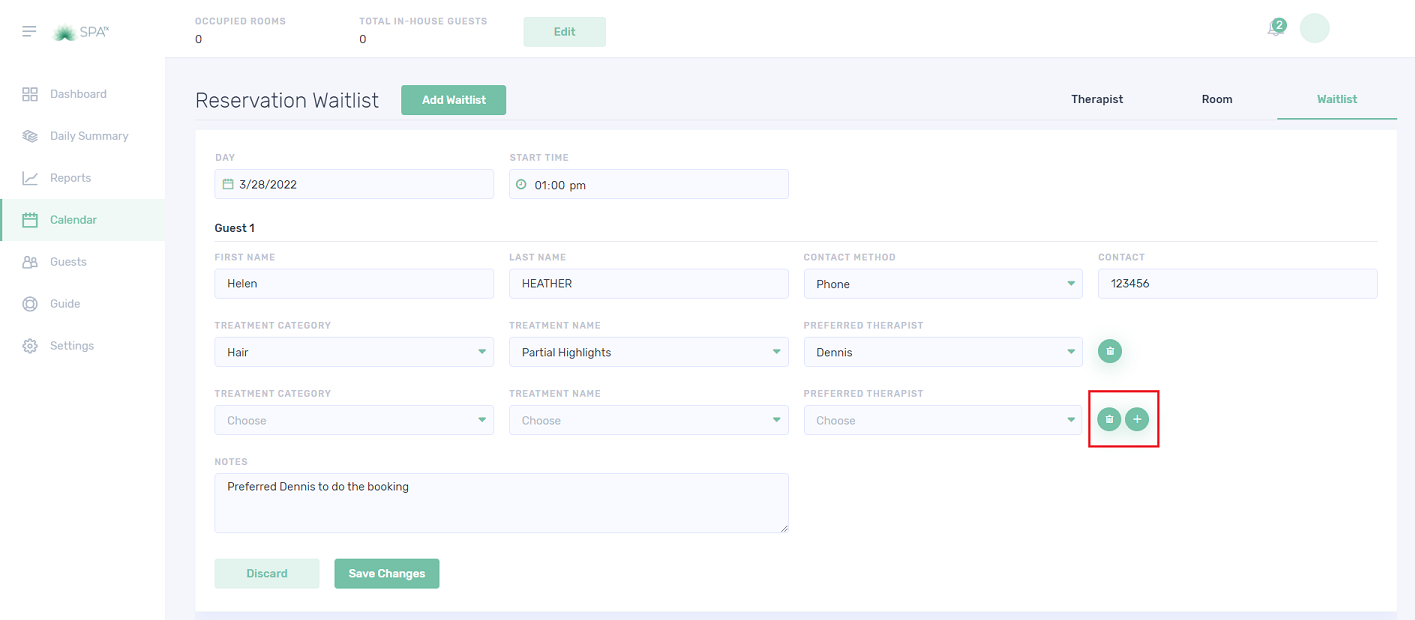
3. Fill in the Reservation Waitlist as displayed below.

4. You can add treatment by clicking the “+” button. Or click the delete icon to delete a specific treatment. Click the “Save Changes” button when finished.
5. The “Reservation Waitlist” details will display like the below image. The user can hover on the comment icon and the notes will be displayed.

6. To edit the waitlist, click the 3 dots button. Ensure to click the “Save Changes” button to save the changes.

Quiz – Choose the correct answer.
1. Which one describes the Waitlist?
a. It is a record when there are no available therapists or rooms that match the guest’s booking request.
b. It is a list where customers cannot decide what treatment they will have.
c. No-show list
2. In the New Waitlist Item box, what is the maximum number of guests we can add at the same time?
a. 1
b. 2
c. 3
3. Can we add more than one treatment to the Waitlist?
a. Yes
b. No
c. Maybe
If you need further assistance, please send an email to helpdesk@spa-tx.com