
This refers to services that are offered at reduced prices that the customer can add to their existing booking. The predefine offer will automatically appear on the booking page for easy reference and upsell of the host. It mostly lasts for 30min.
1. On the Settings Dashboard page, click the “Manage” button for the spa menu.

2. Click the “Special offers” tab, then click the “Add Special Offer” button to add a new offer manually.

3. Fill in the information needed as displayed in the image below. Check and click the applicable features. Or simply choose the “Select All” button if all features are available.

4. After room feature selection, all the rooms with the same feature will be displayed, and the user can select which one can be used for the treatment. Click the “Save Changes” button to complete.

5. To upload the treatment list, you have to fill up the file using the template as the below image and mark the treatment name under the Special offer column.

6. Click the “Upload XLS” button and attached the excel template to upload. You can also download the Spa rooms list in an excel file.

7. All the existing special offers will be displayed the same as in the below image. Click the 3 dots to delete or edit/view the treatment setting.
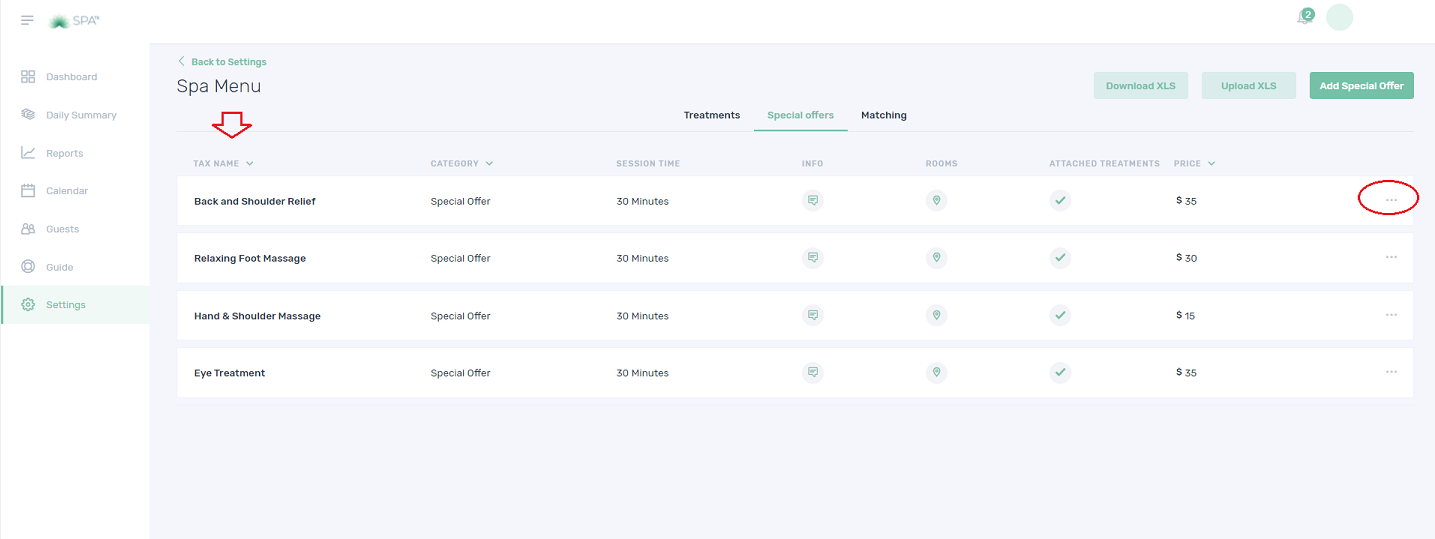
8. Point the cursor on the comment and location symbol, and the description and arranged rooms will be displayed, respectively.

Quiz – Choose the correct answer.
1. Define Special offer treatment?
a. Special treatment
b. Complimentary treatment
c. Services that are offered at reduced prices
2. Can the special offer be booked solely?
a. Yes
b. No
c. Maybe
3. What are the pieces of information that we can set up on the Special offers tab?
a. Description/Info and turnaround
b. Price and duration
c. Both a and b
If you need further assistance, please send an email to helpdesk@spa-tx.com